
Create an AltspaceVR world without Unity3D
Build and publish a simple AltspaceVR world directly from the web Worlds editor without using the Unity3D upload workflow.

This guide is maintained as a portable Markdown document.
You can create an AltspaceVR world without installing Unity3D or using the traditional Unity upload method. The new web Worlds editor lets you create a world, edit its information, create an index.html file and upload the assets your world needs.
This guide covers the browser-based workflow at altvr.app/account/worlds. You will need an AltspaceVR account and access to the Worlds section.
What this method is for
This workflow is useful for simple web-based worlds, prototypes, A-Frame scenes and lightweight experiments. Your world is delivered as web files, so the starting point is an index.html entry file rather than a Unity project package.
It is not a replacement for every Unity-based creator workflow. If your project depends on Unity-only tooling, custom packages or a more advanced export pipeline, you may still need the Unity method. For a small world or a quick test space, however, the browser editor is a much faster way to get started.
1. Open your AltspaceVR Worlds
Open Your worlds and sign in if necessary.
The Worlds page shows your existing worlds and a NEW WORLD button.
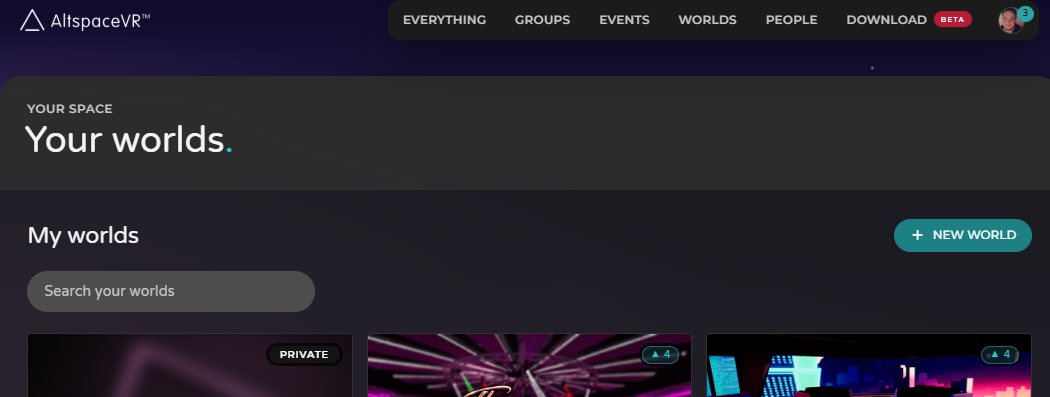
Select NEW WORLD, then give the world a name. You can change its details later from the world editor.
2. Fill in the world information
Open the INFO section in the world editor. Add the basic information people will see when they discover your world:
- Name — a clear title for the space.
- Description — explain what people can do there and what kind of visit to expect.
- Who can join — choose the access level that suits your test or community space.
- Any other available visibility or access settings shown in the editor.
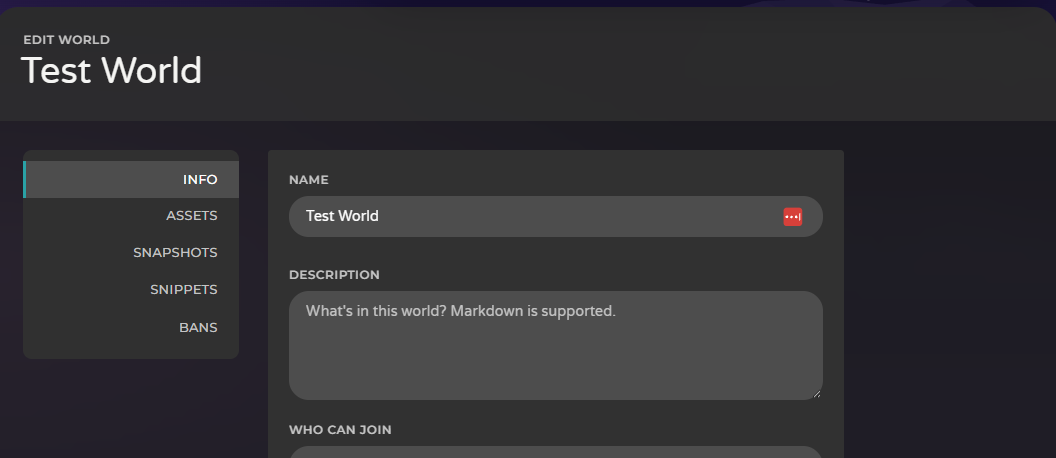
Keep the first description practical. Tell visitors whether the world is a prototype, a social space, an event environment or a private test.
3. Open the Assets section
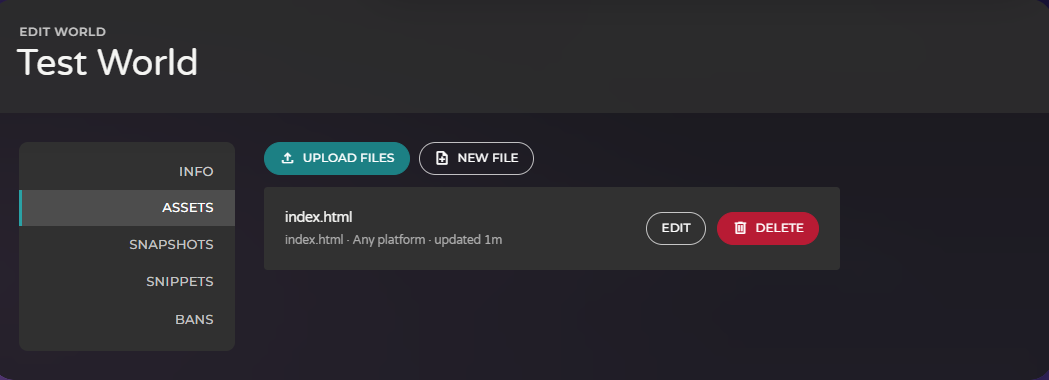
Choose ASSETS in the left-hand menu. This is where you create and manage the web files for the world.
You will see two important actions:
- UPLOAD FILES — add files from your computer.
- NEW FILE — create a file directly in the browser editor.
Every web world needs an entry point. In this workflow, that entry point is normally named index.html.
4. Create index.html
Choose NEW FILE, name it index.html, and open it in the editor. The page provides starter options including:
- Blank page
- Ground plane
- Campfire
- FireValley
Choose Ground plane if you want a simple, understandable starting point. The editor inserts an A-Frame scene containing an a-scene and a ground plane.
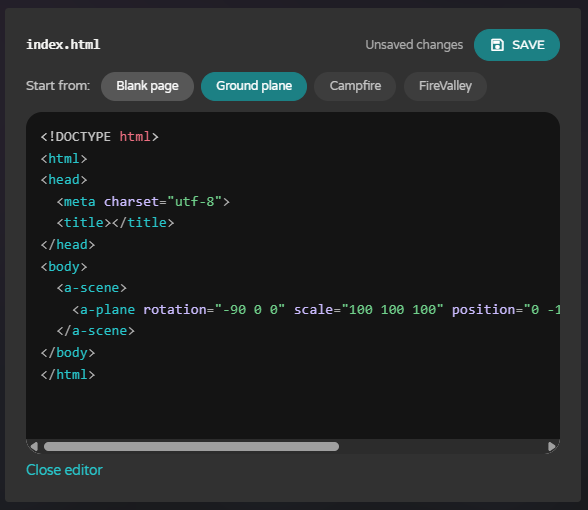
The starter is only a beginning. You can edit the HTML, add entities, change colours and include other assets as your project grows.
5. Save the file
The editor shows an UNSAVED CHANGES indicator when the file has been modified. Choose SAVE before leaving the editor.
After saving, close the editor and confirm that index.html appears in the Assets list.
6. Upload additional files
If your scene uses images, audio, models or other files, choose UPLOAD FILES and select them from your computer. Keep your paths consistent with the references in index.html.
Upload the files required by your world and use the filenames and paths expected by your index.html file.
7. Test the world
Return to the world page and open the world using its preview or visit action. Check that:
- The page loads without a blank screen.
- The ground or scene appears correctly.
- Images and other assets load.
- The world name and description are correct.
- Your access settings allow the people you want to test with.
If the world does not load, return to ASSETS and check that index.html is saved with the exact filename and that every referenced asset exists.
Common problems
The world is blank
Check that the file is named exactly index.html, that it contains a complete HTML document or valid A-Frame scene, and that you saved the latest changes.
An image or model is missing
Check the file path and filename, including capital letters. A reference such as images/Sign.png may not work if the uploaded file is named sign.png.
Changes are not appearing
Save the file again, close the editor, then reopen or refresh the world. If the platform has cached an older version, allow a short time for the new asset to become available.
You need Unity features
The browser workflow is designed for web files and A-Frame-style scenes. Use the Unity3D upload workflow when your project needs Unity packages, scripts or tools that cannot run as browser content.
Official editor
The available controls, templates, supported file types and access settings may change as the new AltspaceVR creator tools continue to develop.